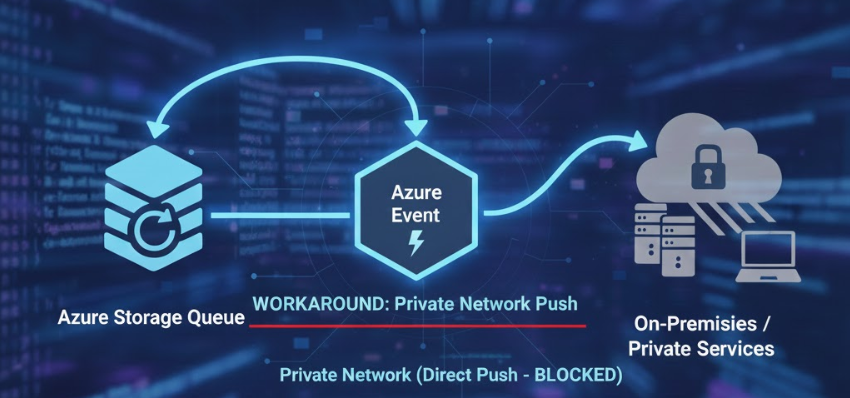
Delivering Events Securely Over Private Endpoint
When using a private endpoint, Microsoft's event grid is unable to deliver events to an application using push delivery. This means that applications that rely on event grid to push events to a webhook will fail. Traditionally, event grid will push events to Apporetum's webhook to be used in the application's event viewer. Due to event grid's limitations over a private endpoint, trying to set up an event grid webhook subscription will cause this error:
Deployment has failed with the following error: {"code":"URL validation","message":"Webhook validation handshake failed....}
Using Storage Queues for Events
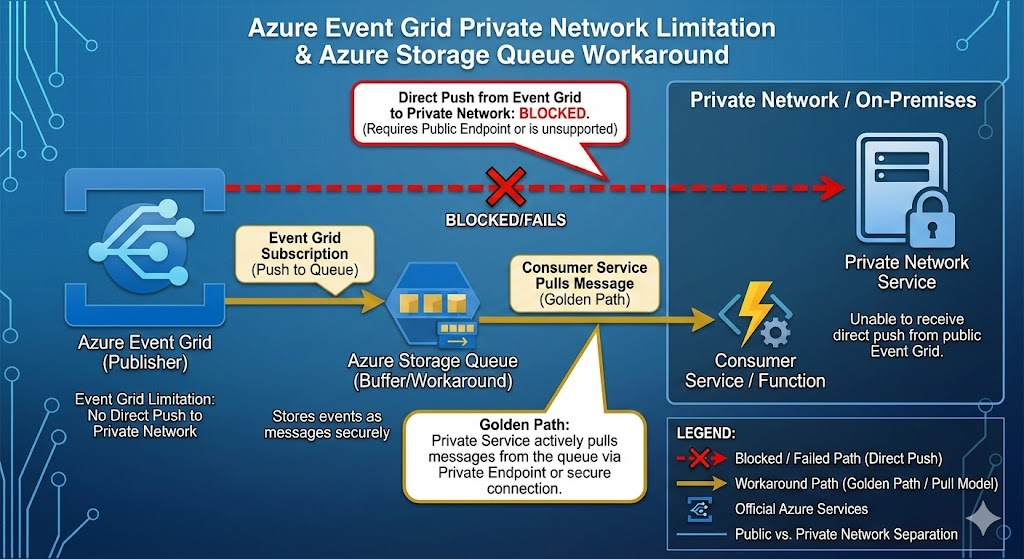
Since Event Grid's push delivery model cannot operate over private endpoints, Azure Storage Queues can be used as a workaround. In this architecture, event grid is able to deliver events to a storage queue which then can be consumed by a function app for push delivery.
Detailed Diagram
Below is a visual diagram describing the current limitation with Private Endpoints and the solution described in this blog post.
Configuring an Event Subscription
It is assumed Event Grid has already been configured with Apporetum. For more information click here.
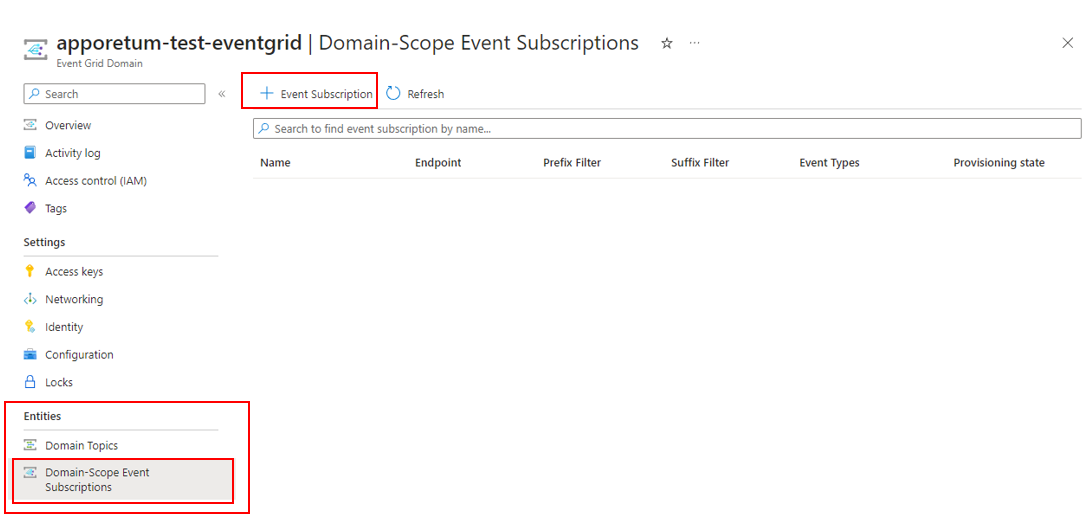
Navigate to deployed event grid resource and under Entities menu tab, select Domain-Scope Event Subscriptions
-
At the top page, click + Event Subscription
-
Enter details to subscribe to the Apporetum Events
-
Enter a descriptive name in the Name field to identify the service subscribing to the events
-
Select Cloud Event Schema V1.0 for the Event Schema
-
Uncheck the Scope to domain topic checkbox
-
Select Storage Queue from the Endpoint Type menu in the Endpoint Details section
-
Select Configure an endpoint from the Endpoint menu
- Select the Subscription in which the storage queue will reside
- Select a Storage Account where the storage queue will reside
- Select an Existing Queue or Create a New Queue if there is not one available
- Select Create to save the storage queue settings
-
- Click Create button to complete the setup of the subscription
Events that are generated from event grid will now start flowing through to the storage queue.
Configure Storage Queue
Once the storage account and storage queue have been created, the function app will need access to the storage queue. To configure this functionality:
- Navigate to the storage account
- Under the Settings navigation blade, select Configuration
- Change Allow storage account key access to Enabled
- Select Save to save the configuration change
- Under the Security + Networking navigation blade, select Access Keys
- Take note of the Connection string that is available. This will be used to allow the function app to connect to the storage queue
Creating the Function App
Once events are being sent to a storage queue, you can create an Azure Function App to grab the event and manipulate the data. In the case of Apporetum, the function app can be used to POST the event to Apporetum's webhook. This functionality works over private endpoint (with a few configuration changes). To create a new function app:
- Navigate to portal.azure.com and search "Function App" in the search bar
- Select Create to create a new function app
- Select Flex Consumption
A Flex Consumption Plan is required as it is the only function app plan that supports virtual network integration. For more information click here.
- Select the Subscription and Resource Group where the function app will be deployed to
- Select the Region, Runtime stack, Version, and Instance size for your function app
- Select Next to configure the Storage of the function app
- Select the Storage Account which hosts the event grid storage queue
- Continue to the Networking tab
- Under Enable virtual network integration select On
- Under Virtual Network select an existing virtual network or create a new one. The virtual network must be in the same region as the function app
- Under Inbound access set Enable private endpoints to On. Give the private endpoint a unique name
- Under Inbound subnet select a private endpoint subnet (if already configured) or select create new to create a new subnet in the virtual network
- Under Outbound access set Enable VNet integration to On
- Under Outbound subnet select a private endpoint subnet (if already configured) or select create new to create a new subnet in the virtual network
- Navigate to the Review + Create tab and select Create to create the function app
Configure Virtual Network for the Storage Queue
The storage account that hosts the storage queue will also need to be on the private endpoint to communicate to the function app. This can be achieved by:
- Navigate to the Storage Account where the event grid storage queue was created
- Under the Security + networking navigation blade, select Networking
- Under Public network access select Manage
- Under Public network access scope select Enable from selected networks
- Under Virtual Networks select Add a virtual network and Add existing virtual network
- Select the Virtual Network where the function app was deployed to, and select the subnet that was configured in step 12 of Creating the Function App
- Select Add to add the virtual network
- Under Exceptions select Allow trusted Microsoft services to access this resource
- Select Save
Function App Code Sample
A sample of code is provided below that grabs the event from a storage queue and POSTs the event to Apporetum's webhook. The "AzureWebJobsStorage" is an environment variable that holds the Storage Queues Connection String. This function app uses a "Queue Trigger" that will run the code in the function app as events populate the storage queue.
[Function("Resource-queue-to-event-viewer")]
    public async Task RunAsyn([QueueTrigger("INSERT_STORAGE_QUEUE_NAME", Connection = "AzureWebJobsStorage")] QueueMessage message)

    {
        // Save Storage Queue Event to variable
        var NewEvent = message.MessageText;

        // POST event to Apporetum Webhook
        var client = new HttpClient();
        var request = new HttpRequestMessage(HttpMethod.Post, "INSERT_APPORETUM_WEBHOOK");
        var content = new StringContent(NewEvent);
        request.Content = content;
        var response = await client.SendAsync(request);

        // Handle Apporetum Webhook response - Log response to Azure
        if (response.IsSuccessStatusCode)
        {
            _logger.LogInformation("Successfully sent event");
        }
        else
        {
            _logger.LogError("Could not send event with error code {Code}: {Message}", response.StatusCode, response.ReasonPhrase);
        }
    }