Configuring Actions
In this article, you can find information on how to configure actions in Apporetum. Actions are defined in the Actions tab of a transition and determine the automated tasks Apporetum performs when an account moves from one state to another.
 The Actions panel with no actions added.
Before configuring actions, ensure you have created a transition and completed the General tab. See Configuring the State Model for guidance on creating transitions.
How Actions Work
Each transition in Apporetum can have one or more actions associated with it. When an account satisfies the trigger rules for a transition and moves to a new state, Apporetum executes all configured actions for that transition in the defined sequence.
If multiple actions are present, you can reorder them to control the sequence in which they run.
Adding an Action
- Select Add Transition on a state, or open an existing transition.
- Complete the General and Triggers tabs. See Configuring the State Model and Configuring Transition Rules for details.
- Select the Actions tab.
- Select Add Action.
- Select the action type from the dropdown list.
- Configure the settings for the selected action type.
- Repeat steps 4–6 to add additional actions.
- Drag actions into the desired sequence using the drag handle on each row.
- Select Save Changes.
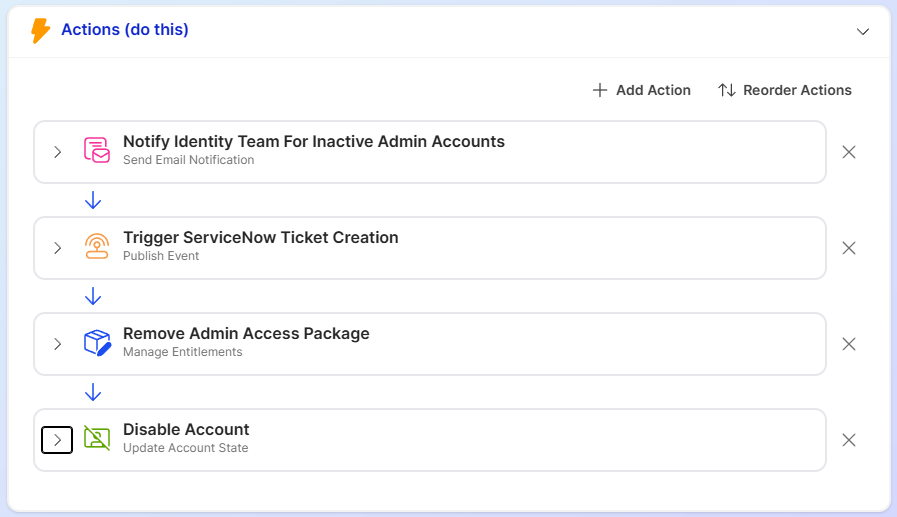 The Actions panel showing a list of configured actions, an Add Action button and Reorder Actions button.
Action Types
Apporetum provides seven action types for use in state model transitions.
Quick reference
| Action Type | What it does | Typical use |
|---|---|---|
| Publish Event | Publishes an event to Azure Event Grid | Trigger downstream workflows |
| Manage Entitlements | Adds or removes application role assignments | Grant or revoke access during lifecycle transitions |
| Harvest Entitlements | Snapshots and removes current entitlements | On Leave - preserve access for later restoration |
| Restore Entitlement | Restores entitlements from the most recent harvest | Return from Leave - reinstate previously held access |
| Send Email Notification | Sends an email notification via a mail template | Notify managers on termination, notify users on activation |
| Update Account State | Enables, disables, or deletes the Entra ID account | Disable account on dormancy, delete on termination |
| Move Account OU | Moves the account to a specified Organisational Unit | OU-governed Group Policy environments |
Publish Event
When the account transitions to the new state, Apporetum can publish an event to the Azure Event Grid. Use this action to trigger downstream workflows or integrations across your ecosystem. For example, notifying a service management system, triggering an Azure Logic App, or integrating with external HR or access governance platforms.
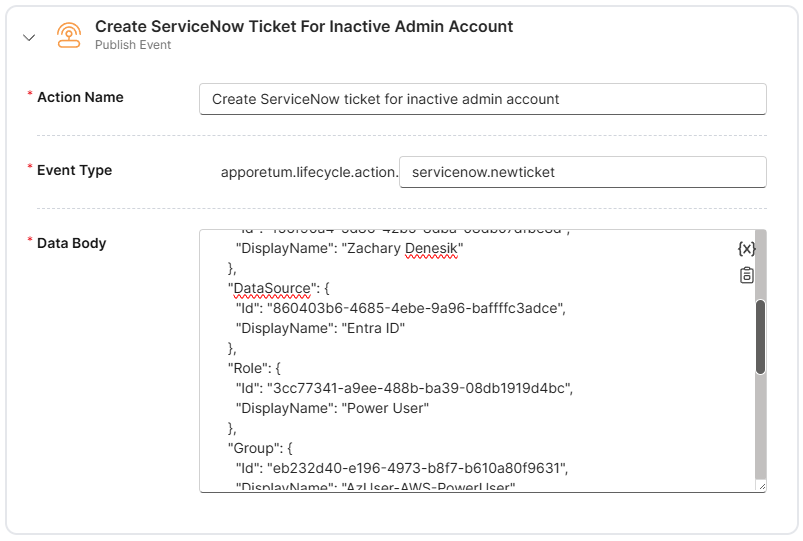
The action requires an Action Name and an Event Type. The event type uses a dot notation to provide a path that can be filtered by subscriber filters on the Event Grid.
The event action will publish the json representation of the event data to the Event Grid. The action includes a drop down menu {X} to provide a short cut to all the attributes (HR, Identity, Account) that can be injected into the payload.
Manage Entitlements
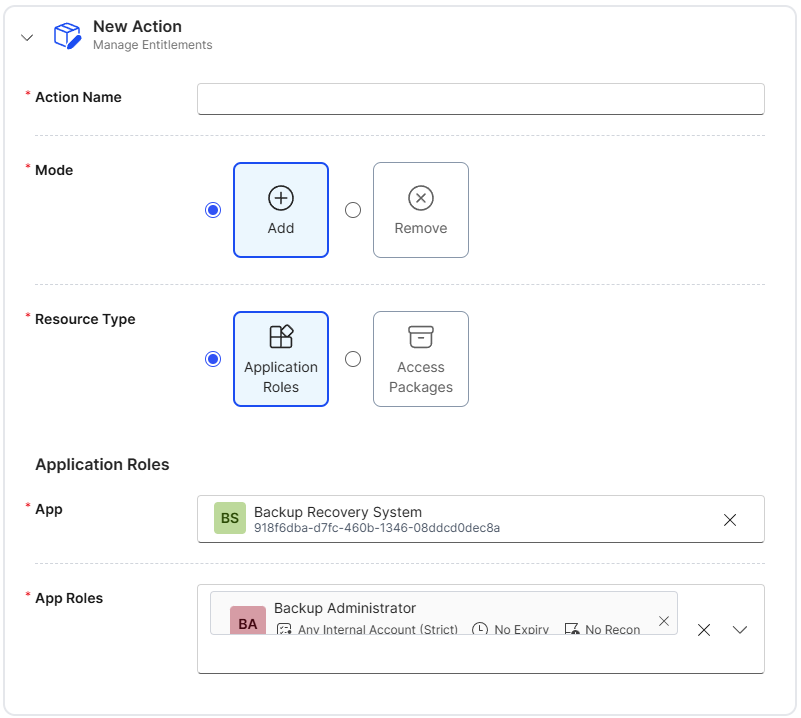
When the account transitions to the new state, the state model can add or remove the account from one or more application roles or packages.
Use this action to automatically grant or revoke access as part of a lifecycle transition, such as:
- Provisioning access packages during on-boarding (Active state entry)
- Revoking application roles on termination
Configure the action by selecting the application roles to add or remove. Multiple roles can be managed within a single action.
Harvest Entitlements
When the account transitions to the new state, the transition can record a snapshot of the account's current entitlements and then remove them. The harvested entitlements are retained so they can be restored later if required.
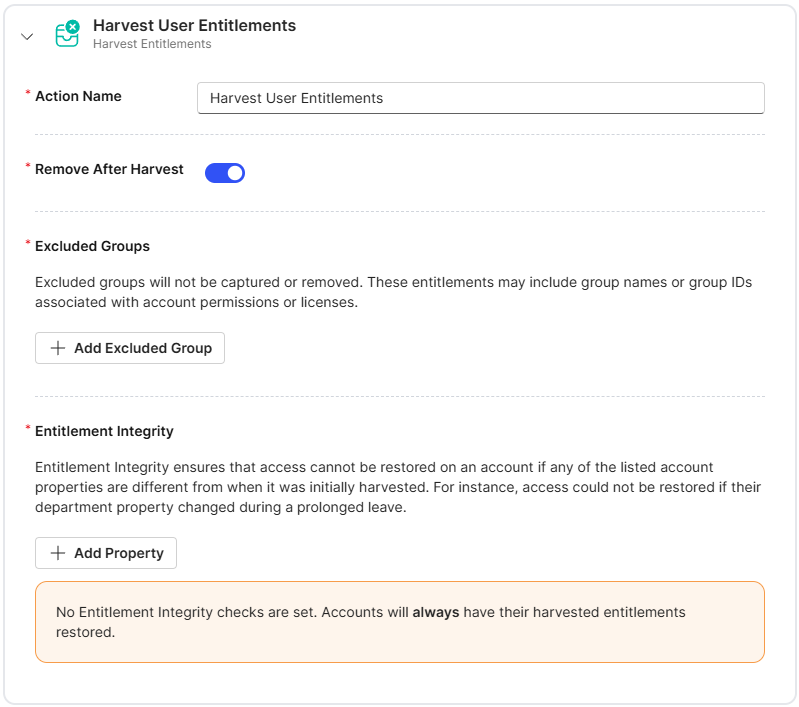
Use this action in conjunction with Restore Entitlement for scenarios such as returning from long service or parental leave.
Harvest stores only the most recent snapshot. If an account is harvested more than once before a restore, only the most recent harvest will be available for restoration.
Restore Entitlement
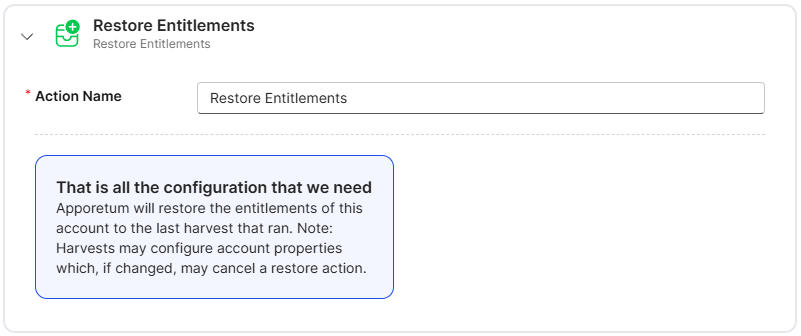
When the account transitions to the new state, Apporetum restores the account's entitlements to the state captured during the most recent Harvest Entitlements action.
Use this action on the transition that returns an account from leave or dormancy to an active state.
Send Email Notification
When the account transitions to the new state, Apporetum sends an email notification. The notification can be sent to:
| Recipient option | Description |
|---|---|
| Primary account holder | The identity whose account is transitioning |
| Manager | The manager of the transitioning identity |
| Account itself | The email address of the account being transitioned |
| Specified email address | A fixed email address - useful for team inboxes or administrators |
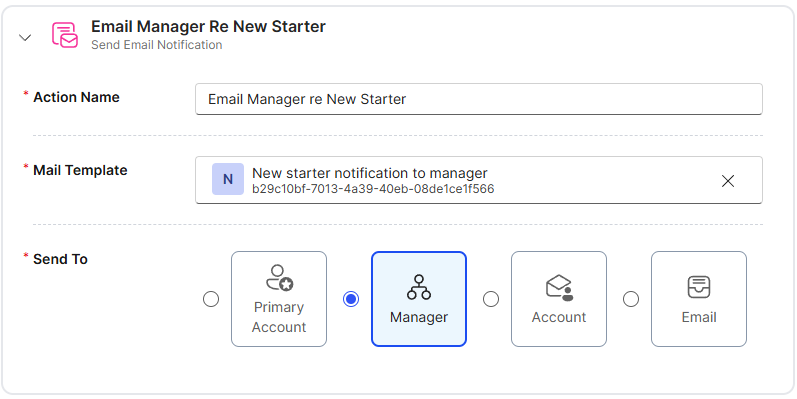
Email notifications are sent using mail templates. Refer to Configure Email Notifications in the Learn documentation for guidance on creating and managing mail templates.
Update Account State
When the account transitions to the new state, Apporetum updates the account's status in Microsoft Entra ID.
| Option | Effect in Entra ID |
|---|---|
| Enable | Sets the account to enabled - the identity can sign in |
| Disable | Sets the account to disabled - the identity cannot sign in |
| Delete | Permanently removes the account from Entra ID |
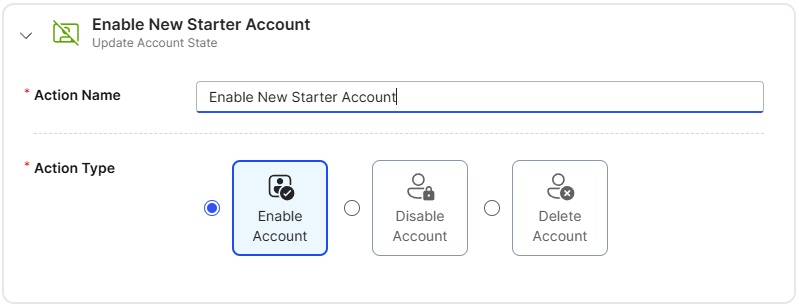
The Delete option is irreversible. Once an account is deleted from Entra ID it cannot be recovered through Apporetum. Ensure your state model is thoroughly validated with a simulation before publishing any transition that includes a Delete account action.
Move Account OU
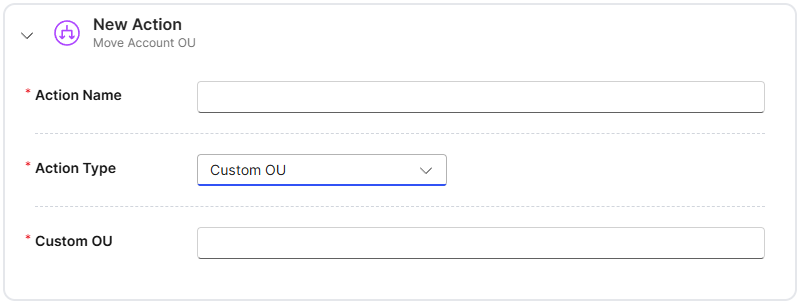
When the account transitions to the new state, Apporetum moves the account to a specified Organisational Unit (OU).
Use this action in environments where OU membership is used to govern Group Policy application or other directory-based controls - for example, moving an account to a restricted OU on dormancy to apply tighter policies.
Action Sequencing
When multiple actions are configured on a transition, Apporetum executes them in the order shown in the Actions tab. The sequence matters because some actions depend on the outcome of others.
The Actions panel showing a list of configured actions, an Add Action button and Reorder Actions button.
Recommended sequences
| Scenario | Recommended action order |
|---|---|
| On-boarding | Update Account State (Enable) → Manage Entitlements (Add) → Send Email Notification |
| Going on leave | Harvest Entitlements → Update Account State (Disable) → Send Email Notification (manager) |
| Returning from leave | Update Account State (Enable) → Restore Entitlement → Send Email Notification |
| Termination | Harvest Entitlements → Update Account State (Disable) → Send Email Notification → Publish Event |