Simulating the State Model
In this article, you can find information on how to run a simulation of your state model in Apporetum. Simulations allow you to test your draft state model and validate the behaviour of your states, transitions, and rules in a safe environment before publishing.
We strongly recommend running a simulation before publishing your state model. Once a state model is published, it cannot be edited and will immediately govern your identity landscape.
Why Simulate?
Simulations run against your actual identity data without writing any changes to production systems. They show you exactly how accounts would move between states under the current configuration, allowing you to:
- Confirm that trigger rules are selecting the correct accounts
- Verify that transitions fire in the intended order
- Identify accounts that would be unexpectedly affected
- Catch overly broad or overly narrow rules before they impact real identities
- Validate time-based transitions using a specific Point In Time date
Running a Simulation
- In the Apporetum navigation menu, select Identity, then select State Model.
- Select Open on the right-hand side of the draft state model.
- Click on the Simulate button.
- Select the type of simulation you want to run.
- Click on the Start button to begin the simulation run.
The complexity of the state model and the number of accounts being managed by Apporetum will determine how long it will take to run the simulation.
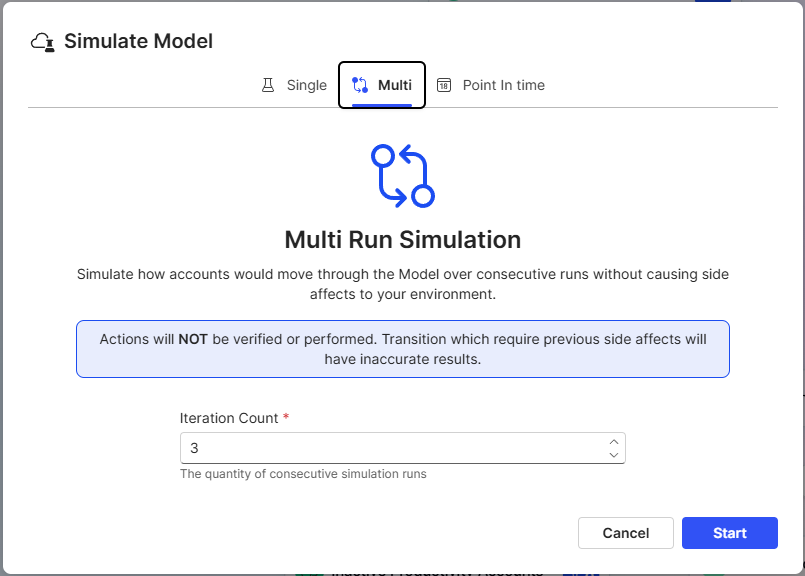 The simulation configuration view. Choose between Single run, Multi (up to 10 iterations), or Point In Time before selecting Start.
Simulation Options
Apporetum provides three modes for running a simulation.
| Mode | Description | Best used for |
|---|---|---|
| Single run | Runs one iteration of the state model against your current identity data. | Initial validation of states and transition rules. |
| Multi | Runs the state model a specified number of times in sequence (2–10 iterations). | Observing how accounts progress through multiple transitions over time - for example, checking that an account correctly moves from Pre Start → Active → On Leave across successive runs. |
| Point In Time | Simulates the state model as if it were executing at a specified date and time. | Testing time-based transitions, or preparing for known future events such as end of financial year or a planned organisational restructure. |
Multi-run sequencing
When using Multi mode, Apporetum carries forward the results of each iteration as the starting state for the next. This means you can observe how an account progresses across its full journey - not just a single step.
Interpreting Simulation Results
After a simulation completes, Apporetum displays the results on the canvas. Each state is annotated with a colour-coded indicator showing how account counts have changed.
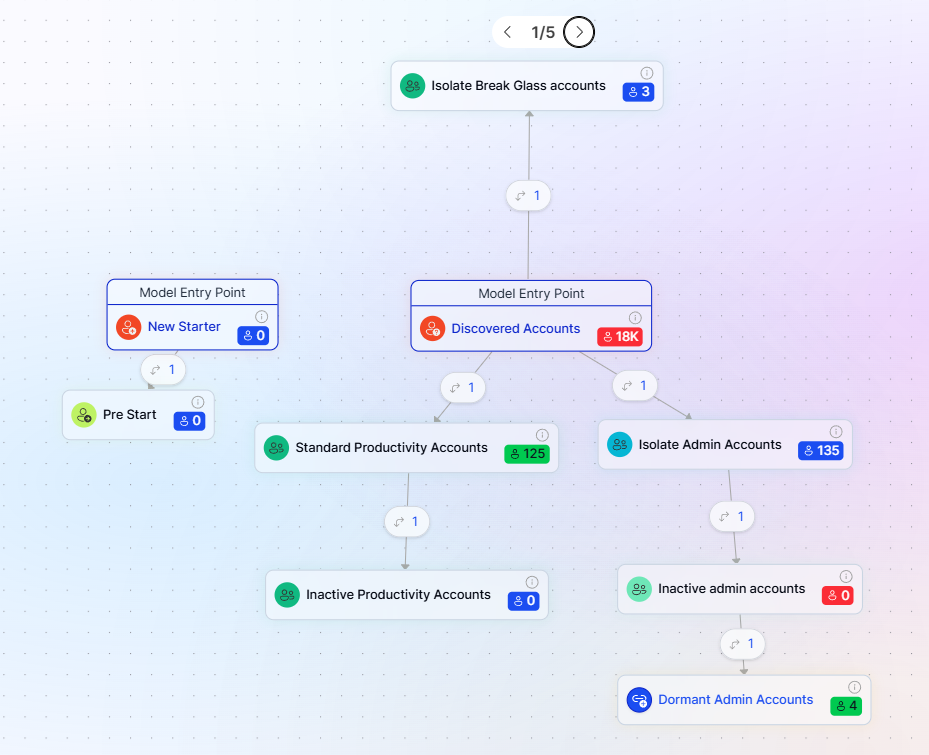 Simulation results on the canvas. Colour coding on each state node indicates whether account counts have increased, decreased, or remained unchanged.
Colour coding reference
| Colour | Meaning | What to check |
|---|---|---|
| 🔵 Blue | The number of accounts in this state has not changed | Expected for stable states where no trigger conditions were met |
| 🟢 Green | The number of accounts in this state has increased | Accounts have transitioned into this state - confirm these are the intended accounts |
| 🔴 Red | The number of accounts in this state has decreased | Accounts have transitioned out of this state - confirm they moved to the correct destination |
Stepping through results
After the simulation starts, select the arrow to step through each stage of the results. In Multi mode, each step represents one iteration.
Reviewing State Results
Select any state in the simulation results view to inspect the detail for that state. Apporetum displays three sub-views.
| Sub-view | Description |
|---|---|
| Accounts | All accounts currently in the selected state following the simulation run. |
| States | Detail for each state in the run. Selecting Actions from this view shows which transitions move accounts to or from the state, including self-connected transitions. |
| Transitions | The triggers and actions configured for each transition within the selected state. |
Selecting a state in the results view navigates you back to the state detail in the model configuration. This allows you to quickly review and adjust your configuration if the simulation reveals unexpected behaviour.
Simulating the Published Model
Simulations can also be run against the published state model. To do so:
- Select Open on the published model.
- Select the Simulate tab.
- Click on the Simulate button.
- Select the type of simulation you want to run.
- Click on the Start button to begin the simulation run.
This is useful for:
- Validating expected outcomes before scheduling a production run
- Investigating what would happen if the model ran right now
- Testing how the model behaves at a future point in time using Point In Time mode
Running a simulation against the published model does not affect production data. It is safe to simulate at any time.
Simulation Checklist
Use this checklist before publishing any new state model or after making significant changes to an existing draft.
- Run a Single simulation and review the colour coding on all states
- Select each state that shows green or red and confirm the accounts listed are the expected ones
- Run a Multi simulation (3–5 iterations) to validate multi-step lifecycle journeys
- Use Point In Time to test any time-based transitions (e.g. start date, leave date, end date)
- Confirm break-glass state accounts are limited to edge cases only
- Review transitions in the state detail to confirm triggers and actions are configured correctly