Account Type
Overview
In this article, you will learn about Account type to manage account tagging and matching. This article will start with an introduction to Understand Account Type. You will learn the process through the how-to guide, Create or Update Account Type.
Navigate to Account Type
- Click the Settings main menu option
- By default, you will be seeing the About page
- Click Account Type under the Account Configuration tab
Understand Account Type
Account types are classifications of user accounts that can be used to segment users within a data source. For instance, if your data source has a large set of user accounts and you only want to show the enabled accounts within Apporetum, you would create an account type by specifying this criterion so that only the required accounts are pulled into Apporetum and the rest are excluded.
- Account type acts like a filter.
- Click the Match Accounts tab to view the account summary. The summary above the account types is based on the filters set up under Account Types.
Create/Update Account Type
Manage
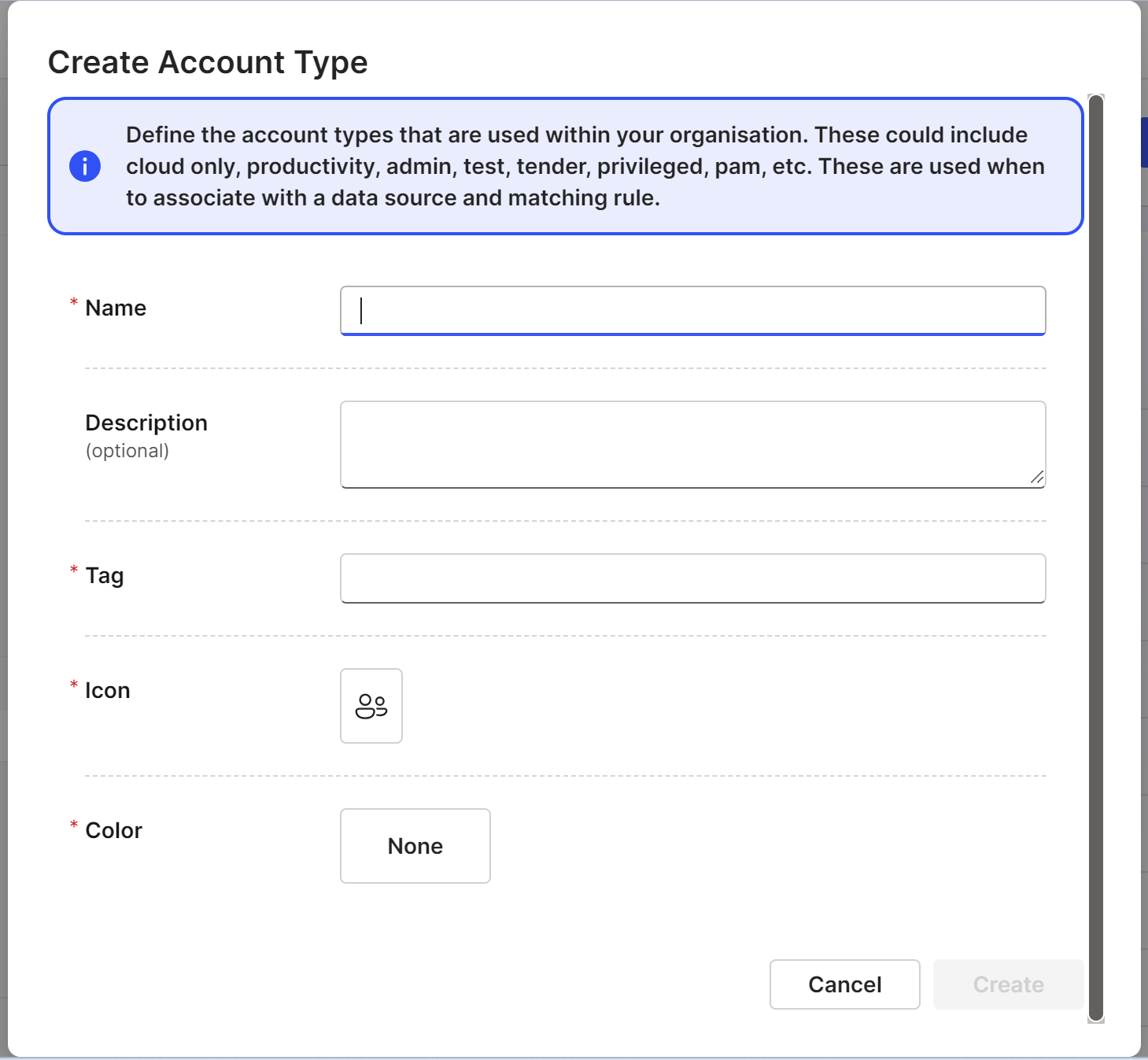
If you change or update your account type settings, your account summary will be changed too.
- Navigate to Account type
- By default, you will be on the Manage tab
- Click + New account type
- Fill in Name
- (Optional) give a Description of this account type
- Give a Tag name
- Choose an Icon
- Choose a Color
- Click Create
Mapping
About
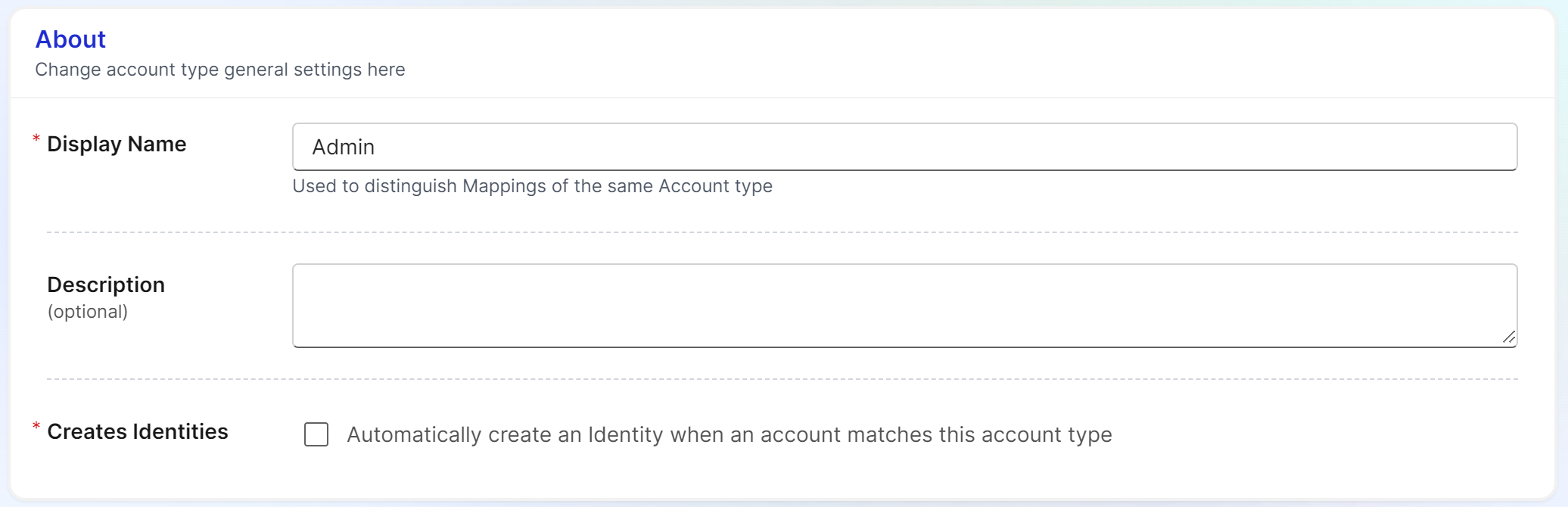
- Fill in Display Name
- (optional) Give a Description
- Check / uncheck Create Identities
- Display name -- can be viewed as rule name; tech users need to be able to understand it
- Account type -- this name needs to make sure that business users will be able to understand. They might need to encounter the account type in Apporetum to achieve the outcome. For example when they view app members, account type is one of the column headers.
Membership Filter
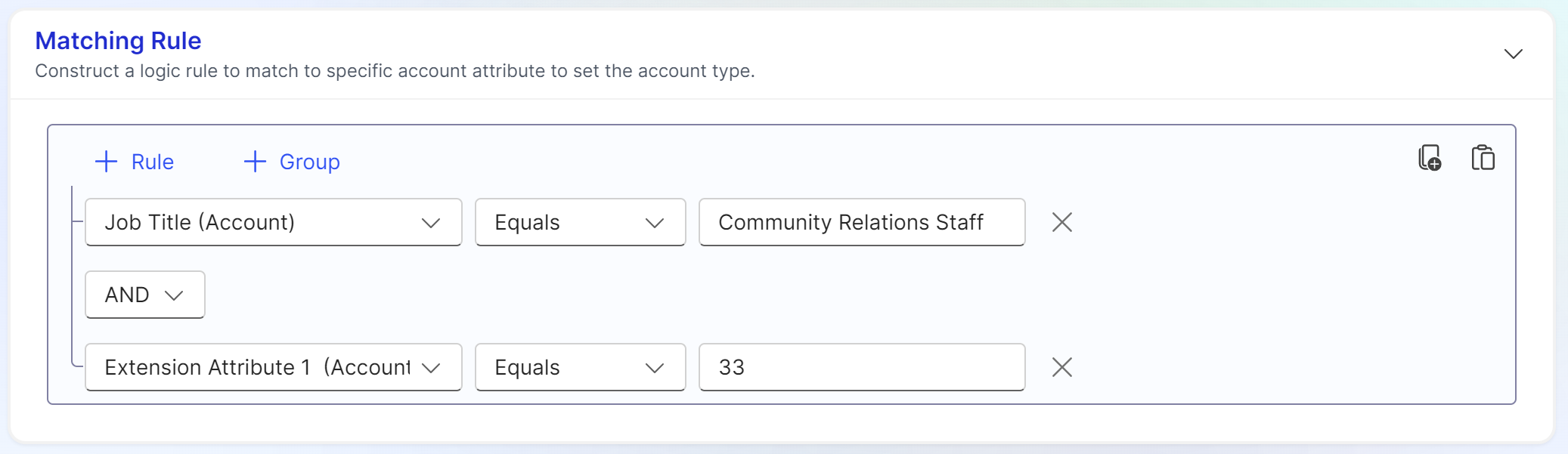
- Click + Rule
- Choose a property/option
::: info
 In this picture, property/option is Account Type - Key(Account), operator is Equals, and value is text.
:::
- Choose which operator to define this rule
- Choose a value
- Click + Group if you want to set up combined rules
- Choose from AND, OR operators
- Repeat the steps of + Rule
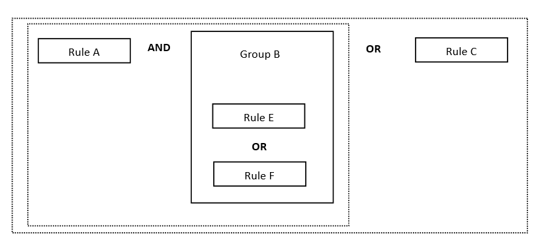
- AND will be done prior to OR
- A Group will group the rules together and will sort within itself
For example, rule A and Group B or rule C, the result will be ((A and (B)) or C)
Match Accounts
You will be able to see Accounts summary, and Data source-Account Type Mappings
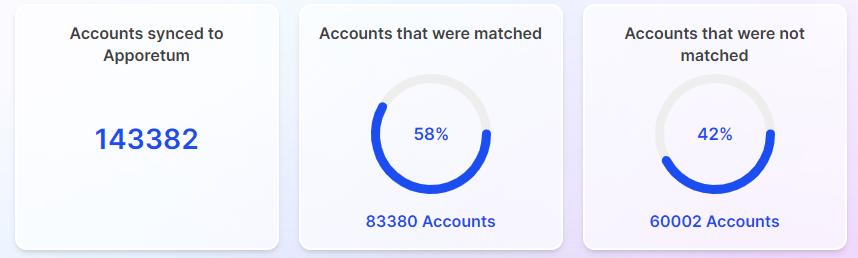
- Accounts synced to Apporetum: imported Accounts from this Data Source into Apporetum
- Accounts that were matched: accounts which are matched to Identities in this Data Source
- Accounts that were not matched: Accounts excluded from Apporetum as they are not a member of an Account Type
Data source-Account Type Mappings
It shows the account mappings for all the data sources across Apporetum. The mappings display on each data source. You can search for the data source or use the filter to find a particular data source account type mapping.
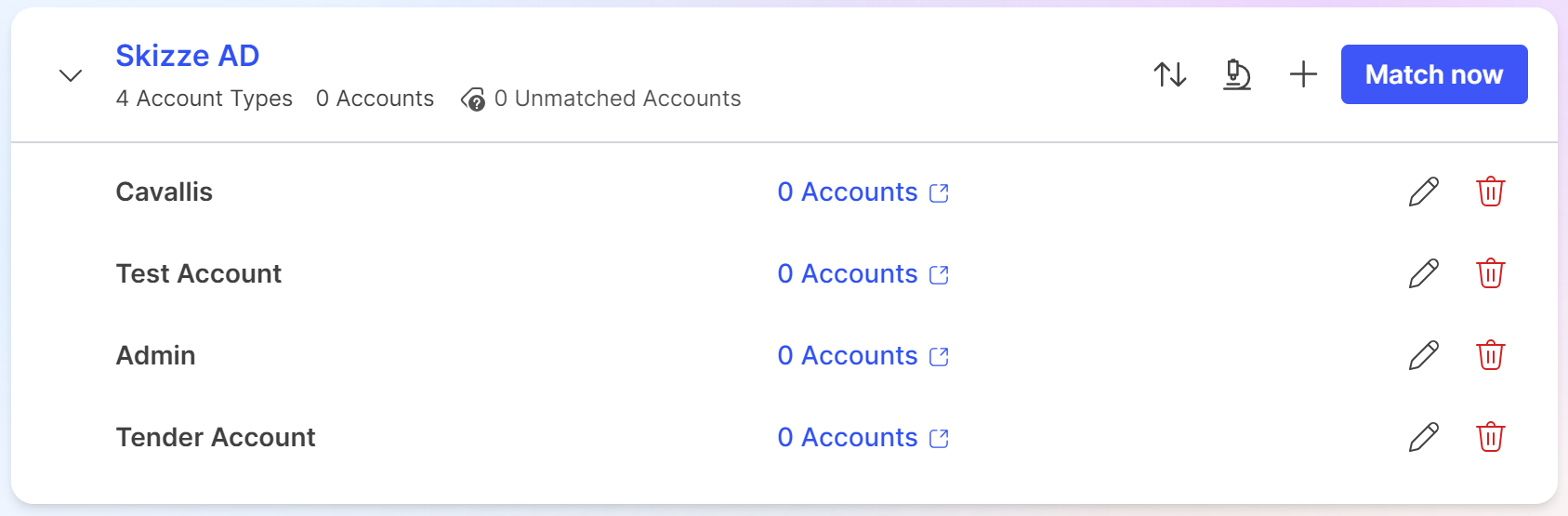
- View the total Account type, total accounts, and unmatched accounts
You can click Unmatched Accounts to view more details.
- Click the Accounts on each account type row to view matched accounts
- Click the edit button to update mapping rules
- Once you update the mappings, click Match now to see the up-to-date results
- Next to the Match now button, there are three more buttons that you can use. You can hover over those buttons to view the icon details. From the left to right, the buttons are Reorder Account Types, Test Account Types, and create New Account Type Mapping.
- You have the option of Remove Matches at the top right of this page.