Trusted Parties
Overview
Trusted parties allow external partners from trusted work relationships with your organisation to be added to Apporetum as guests. In this article, you will learn how to navigate to trusted parties page, view or update current trusted parties, or add a new trusted party.
Navigate to Trusted Parties
- Click the Settings navigation menu option
- By default, you will be on the About page
- Click the Trusted Parties menu option
Current Trusted Parties
- Navigate to Trusted Parties
- View Display Name, Owner, Domains and Status
info
Owner is the Contact Person when you configure a trusted party.
- Click each row to edit the settings of this trusted party
Configure a New Trusted Party
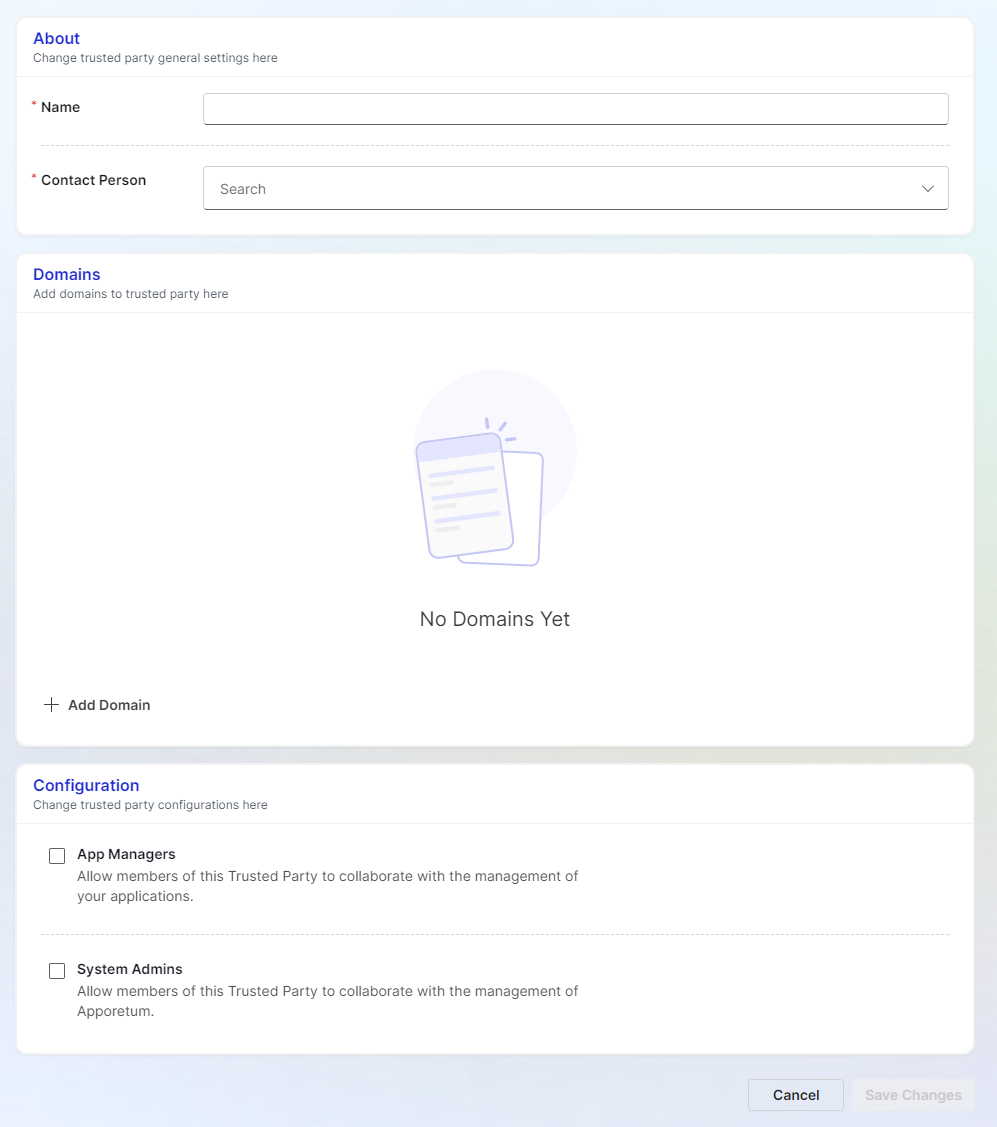
- Navigate to Trusted Parties
- Click + Add Trusted Party at the top right of this page
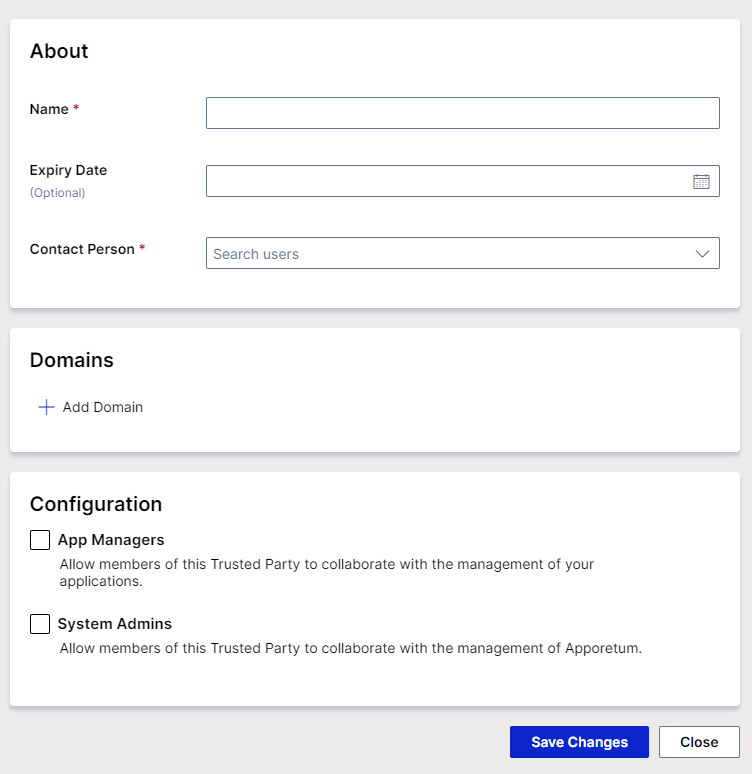
- Create a Name for this trusted party
- Assign a Contact Person
info
Contact Person should be a member in the tenant and should be a console user in Apporetum.
- Add Domains
- Select the applicable Configuration options, App Managers, System Admins
tip
For example, if you tick App Managers, users in the included domains can be added to be an app manager in Apporetum as a guest.
- Click Save Changes